Working with the Pull Plan Planning Board
Map out pull plan sequence details independently, or use a live pull-planning session to work with project team members on the same Planning Board in real time. You can add, edit, move, or delete tasks; stage work in the Parking Lot, add task milestones and hand-offs, and bulk-add tasks as your privileges allow. Changes to the Planning Board and Parking Lot appear automatically. You do not need to refresh the page to view changes to Parking Lot tasks.
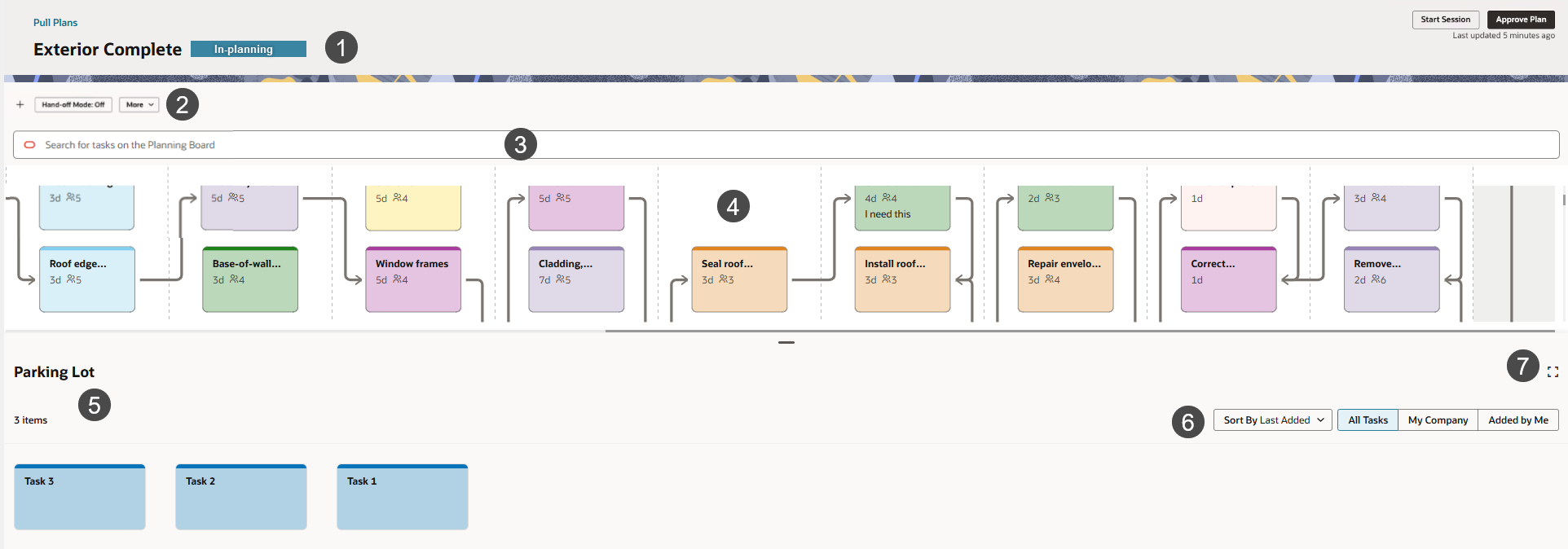
Table of Screen Highlights
Item | Description |
|---|---|
1 | Pull Plan Header: Displays the pull plan name and its current status. Use the Pull Plans link to return to the list page. In a live session, this area also identifies that the plan is being developed collaboratively. Select Start Session to start a live session or End Session to end a live session that is already in progress. The most recent pull plan activity timestamp displays in the top right. Note: If a pull plan has already been approved and released to the Work Plan, the plan is read-only. |
2 | Planning Board Toolbar: Provides actions for adding tasks, managing hand-offs, and accessing additional Planning Board actions, such as toggling Hand-offs Mode On/Off and viewing the Longest Path. Available actions depend on the plan status and the user’s privileges. For example, a pull plan that has already been released to the Work Plan offers an option to review plan details in the Plan Overview panel. |
3 | Search: Finds task cards and task milestones on the Planning Board by name. It does not search the Parking Lot. |
4 | Planning Board: Displays task information in Card View and allows tasks to be added, edited, moved, or deleted as the user’s privileges allow. You can review the pull plan in Hand-offs mode, view task duration, and other privilege-dependent options. |
5 | Parking Lot: Stages tasks that are not ready to include in the planned sequence. Tasks are colored coded by Company or Task Code. Move relevant tasks to the Planning Board when the team is ready to plan them. Tasks in the Parking Lot cannot have hand-offs. |
6 | Use Sort By to sort unplanned tasks alphabetically, by company, or in order of creation. You can also filter Parking Lot tasks by My Company or Added by Me. |
7 | Expand or collapse the Parking Lot to maximize screen space as you work on the Planning Board or collaborate on your pull plan. |