Working with the Pull Plans Page
Use the Pull Plans page to create and manage pull plans for a project. Select a project, and then select Tasks and Pull Plans to open the page. Create a pull plan by entering a plan name and selecting the milestone or activity that the team will plan toward. You can open existing plans, review their status, edit available plan details, withdraw approval when revisions are needed, release approved plans to the Work Plan, and delete eligible plans. Plan status determines the actions that are available: In Planning plans can be revised. Approved plans can be withdrawn or released. Approved and Released to Work Plan plans allow edits only to the pull plan name, description, and session date.
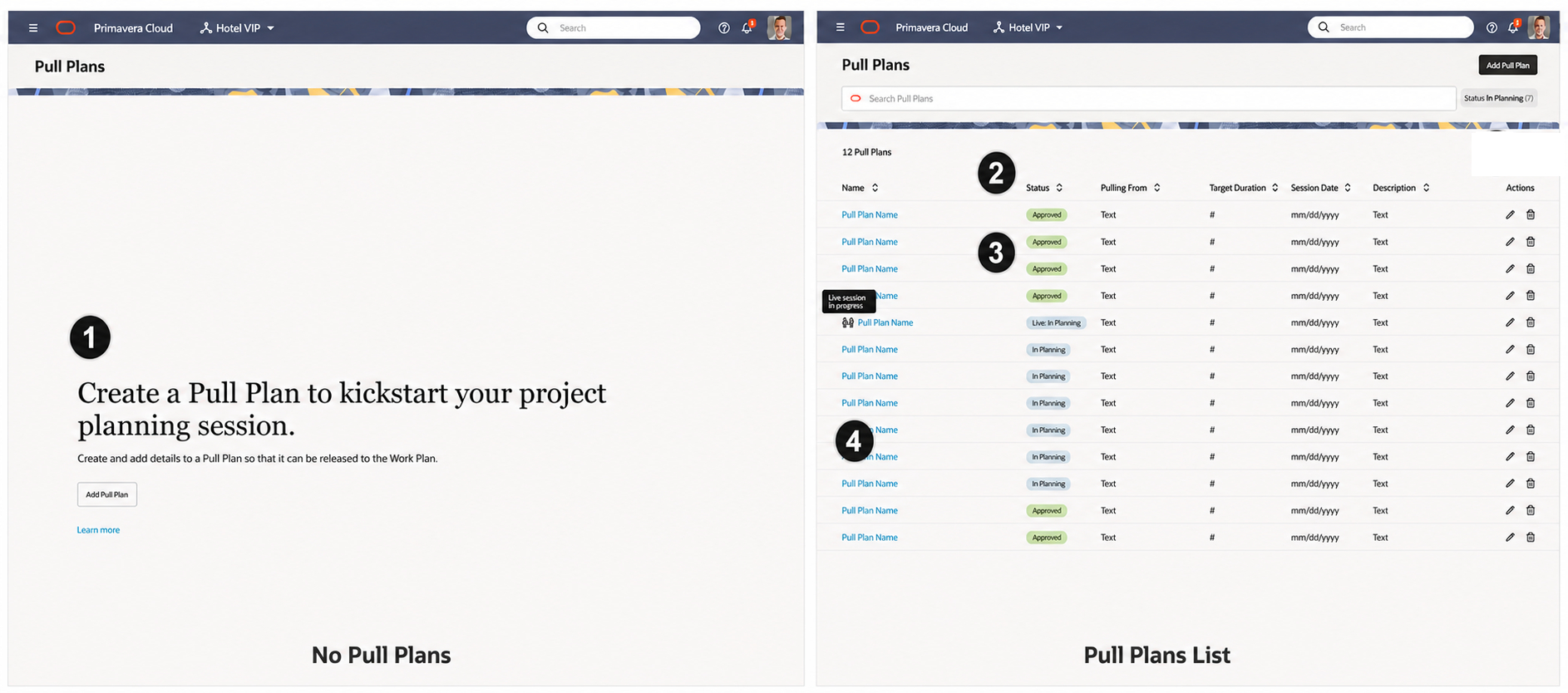
Table of Screen Highlights
Item | Description |
|---|---|
1 | Empty State Page: Appears when the project has no Pull Plans. Users with permission can select Add Pull Plan to create the first plan or select Learn more for Pull Plan Help documentation. |
2 | Pull Plans List toolbar: Provides the options to Add Pull Plan and to search for a pull plan in the list. Users can create a plan or search by plan name, Pulling From, or description; search supports partial, case-insensitive matches. |
3 | Pull Plans List:Displays the project’s pull plans and their details, including status, Pulling From, target duration, session date, and description. Users can sort list columns, open a pull plan from its name, and edit or delete it depending on user privileges. |
4 | Session Indicator:The people icon indicates that a live session is in progress for that Pull Plan. It provides a quick visual cue that the plan has active collaborative work. |